

Stretch Every Charge: Save Time and Stay Tracked
Quickly learn practical, tested tweaks that extend battery life for Ring devices and chest‑strap trackers without sacrificing performance. Small changes add up to days of extra runtime, letting you track longer, charge less, and focus on activity every single session.
What you'll need

Extend Your Fitness Tracker Battery Life: Expert Hardware Tips
Tweak Settings First — Low-Hanging Power Savings
Turn off features you rarely use — you’ll be surprised how much they drain.Open the device app and system settings. Reduce sampling rates for heart rate and GPS (for example, change HR sampling from 1s to 5–10s; cut GPS update frequency), lower LED brightness and vibration intensity, and disable always‑on sensors and unnecessary background activity.
Adjust these specific options:
Limit app background refresh and Bluetooth scanning in your phone’s settings to stop constant wakeups. Each setting swap can recover significant standby time.
Use Power-Saving Modes and Profiles
Your tracker probably hides a battery hero — try these modes during low-need times.Enable built-in low-power or battery-saver modes for everyday wear to stretch runtime without losing core tracking. Open the device app and turn on the default saver or “eco” profile.
Switch to workout-specific profiles only while exercising — for example, enable “Run” or “Training” when you start a session and disable it when you stop to avoid constant sensor polling. Use scheduled modes if available: set low-power hours overnight or during work shifts.
These profiles intelligently trade features for hours of extra life.

Manage Bluetooth and Phone Connections
Is the constant Bluetooth handshake secretly killing your battery?Disable Bluetooth when the tracker isn’t actively paired to stop constant radio use. Turn Bluetooth off from the quick settings or within the tracker app after a workout. Unpair unused devices in your phone’s Bluetooth menu to prevent background reconnections.
Enable your phone’s battery optimization for the companion app so it doesn’t run incessantly in the background. On Android: go to Settings > Apps > [App] > Battery > Optimize. On iPhone: limit Background App Refresh for the tracker app.
Pair only the tracker you’re using and mute phone notifications that frequently wake the device. For example, keep one chest strap paired during training and unpair the spare; silence incoming message notifications during sessions to avoid needless wake-ups.

Keep Firmware and App Updated — Fixes Matter
Updates can be boring—until they fix a battery-sapping bug you didn’t know about.Enable automatic firmware and app updates to receive power optimizations and bug fixes as they’re released. Install updates from the official app or device settings and restart the tracker after updates.
Read changelogs for battery-related fixes — look for notes like “improved sleep mode” or “reduced idle drain.” For example, a recent update might reduce GPS polling frequency, extending chest-strap life during long sessions.
Avoid installing untested beta firmware unless it contains a fix you need; betas can introduce new battery issues. If an update worsens battery life, roll back to the previous release (via the app or recovery mode) or contact support with logs and screenshots so they can investigate and advise.

Maintain Hardware: Clean Contacts and Check the Battery
A dirty sensor or an old cell is a silent saboteur — treat hardware like part of your routine.Keep device contacts, straps, and sensors clean and dry to ensure reliable charging and accurate readings. Wipe contacts with a soft cloth or cotton swab dampened with 90%+ isopropyl alcohol; scrub rubber straps with mild soap and water and dry thoroughly.
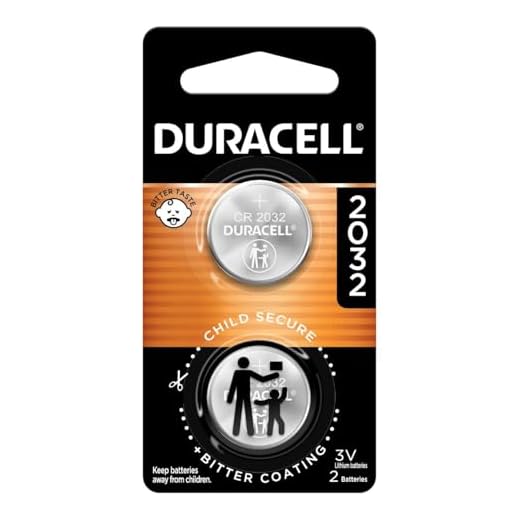
Replace worn or frayed straps and damaged clips to restore snug fit and sensor contact—swap out elastic bands or Velcro when stitching frays or sensors slip. Check whether your tracker uses a user-replaceable coin cell and swap it on the recommended schedule (for example, CR2032-style cells).
Inspect metal contacts for corrosion (green/white residue) and gently clean or replace the contact plate if needed.
Avoid exposing devices to extreme heat or moisture; both accelerate battery wear.
Adopt Smarter Charging and Usage Habits
Charge smarter, not obsessively — small habits add up to substantial gains.Charge proactively. Plug your tracker in when it drops to about 30–40% instead of waiting for a full shutdown. Top up for 10–20 minutes after short daily use to keep cells healthy.
Plan charging around your routine. For example, plug in during dinner or while showering so the device isn’t idle on a charger during peak activity times.
Plug in before a deep discharge and avoid leaving devices at 100% for long periods; for rechargeable trackers, short daily top-ups are okay. Use the manufacturer’s charger, and don’t overcharge overnight repeatedly. Schedule charging during low-need times and disable intensive features during long activity sessions when not required.

Small Changes, Big Gains
Combine these six steps to noticeably extend runtime for Ring and chest-strap trackers. Routine tweaks and mindful charging will keep your devices ready when you need them. Will you commit to small, consistent changes to maximize battery life for longer?
Not sure why everyone treats Bluetooth like the boogeyman. I mean, yes, turning it off helps, but for me the annoyance of constantly toggling it outweighs the battery savings. I’d love more nuance: when is it worth turning Bluetooth completely off vs using low-energy modes? 😅
Also, the ‘Smarter Charging’ part — please explain slow charge cycles vs fast charging. I feel like fast charging everywhere is killing batteries faster over the long term.
Also worth noting: many trackers have built-in thermal controls; if it detects high temps it will slow charging automatically. Still, minimizing heat is sensible.
Good call, Chris. We can add a section on trade-offs: convenience vs battery savings and a short primer on charge cycles and how fast charge affects longevity.
Thanks all — that helps. Guess there’s no one-size-fits-all answer. I’ll try the 20-80% window and Bluetooth off at night.
I only turn off Bluetooth overnight and during long runs when I use a different device. That middle-ground works for me.
Fast charging generates more heat, which can accelerate battery wear. If you care about long-term battery health, avoid frequent fast charges and keep charge between ~20-80% when possible.
Minor gripe: the guide mentions ‘profiles’ but doesn’t list examples for common brands. Would be helpful to see ‘Runner profile settings’ vs ‘Daily profile settings’ in concrete terms.
Also — love the firmware/update point. I ignored updates for ages and then had some weird pairing bugs. After updating both app and firmware, things got way more stable.
Noted, Noah. We’ll add sample profile presets for a few common use cases and clarify brand differences where relevant.
Runner profile = GPS on + HR 1s + notifications off. Daily = GPS off + HR 30-60s + notifications on. Works for most of my devices.
Perfect — that’s the level of detail I was hoping for. Thanks Hannah!
This is honestly the kind of practical content I love. Short, actionable tips that don’t require me to buy a new tracker.
Notes from my experience:
– Tweak settings first: absolutely. Turn off notifications from apps that don’t matter.
– Bluetooth management: I found that ‘always allow’ vs ‘only while using’ on iOS made a surprising difference.
– Firmware updates: yes, but be careful — one update bricked my chest strap until I re-paired it.
Would be cool to have a short checklist printable version.
Re: bricked after update — ugh that happened to me too. I had to fully reset the device and rebuild profiles. Annoying but fixed it.
Yep, I ended up unpairing and reinstalling. Lesson learned: back up any data first if the manufacturer supports it.
Thanks Ethan — great idea about the printable checklist. We’ll add a downloadable checklist and a small firmware-update caution note about re-pairing.
For anyone worried: if a firmware update fails, try removing the device from your phone’s Bluetooth list and re-installing the app. That worked for me.
Short and sweet. I cleaned the contacts like you suggested and it made a noticeable difference — previously the strap would drop connection randomly. Also, little tip: a cotton swab + isopropyl does wonders. 🙂
Great tip, Maya — we’ll add a brief how-to for cleaning contacts safely (and a warning about abrasive materials). Thanks!
Yep, cotton swab + 70% IPA here too. Don’t soak the device — just a gentle wipe and dry.
Haha, love the ‘Small Changes, Big Gains’ ending. Feels like a self-help book for batteries 😂
Real talk: I disabled app notifications and set sleep-only tracking — my ring lasted forever. But I did accidentally miss a call once because I silenced stuff… so maybe a compromise is best. Also, yes to cleaning contacts, but I once used water (don’t do that) — rookie move.
Adding a quick troubleshooting mini-section (including rice/DIY tips and manufacturer-recommended steps) to avoid more disasters like that.
LOL water mistakes are the worst. I put mine in rice (old trick) and survived, but that was panic mode, not a recommended method.
Glad you liked the tone, Sophie 😂. And thanks for the real-world warning — we’ll add a bold ‘no water’ note for electronics cleaning.
Rice saved the day for me too, but yeah, not ideal. Live and learn 😅
I love the ‘Stretch Every Charge’ framing — makes it feel achievable rather than overwhelming. Small changes really stack up.
Question: for people who switch straps week-to-week, does cleaning contacts that often wear them down? I’m paranoid about scrubbing too much.
Good question. Gentle cleaning (light wipe with IPA on a swab) shouldn’t wear contacts down. Avoid abrasive scrubbing or metal brushes — those can remove plating over time.
I rotate straps and just give the contact a quick wipe every few weeks. No issues so far. Treat it like jewelry cleaning rather than scrubbing dishes.
Quick tip that worked for me: create a ‘battery saver’ profile with the app (if supported) and automate it using the phone’s shortcuts/automation to enable at night or during meetings. Saved me a ton of manual toggling.
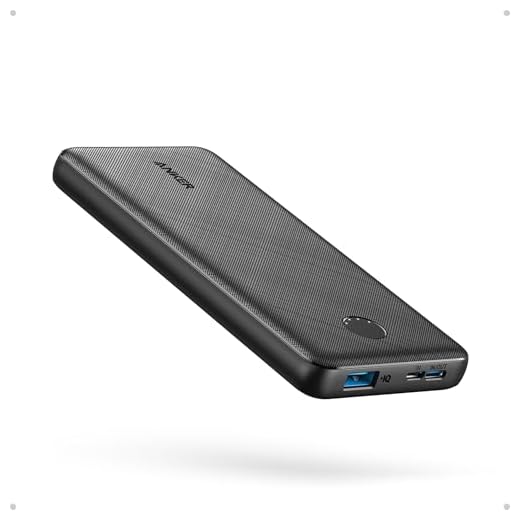
Also, consider carrying a small power bank for long trips — sometimes convenience > squeezing every last minute out of the tracker.
Nice automation tip, James — we’ll include that as a pro-level trick. And agreed: carry a tiny power bank for travel days.
Automation is underrated. I have my ‘battery saver’ turn on when my phone hits 30% and it’s been great.
Great guide — super practical. I especially liked the tip about profiles and power-saving modes. I turned off constant HR tracking overnight and gained almost 3 days on my chest strap battery.
One thing I wish you expanded on: which specific settings are safe to turn off for different activities? Not everyone wants to lose step data but maybe they can drop HR frequency during low-activity periods.
Thanks, Laura — good point. We tried to keep it general, but we can add a small table of recommended toggles by activity (sleep, walking, long runs) in the next update.
For me, switching GPS to occasional fixes instead of constant tracking helped during hikes. Keep HR every 30s instead of 1s for long sessions — still useful and much less drain.
Same — I turn off continuous VO2/advanced metrics tracking unless I’m doing interval sessions. Not perfect but saved a lot. 🙂