

Why Customize Chest Strap HR Zone Alerts?
Personalized heart-rate alerts turn raw data into clear, usable cues so you train smarter, avoid overtraining, and hit goals confidently. This guide shows simple steps to set chest-strap zones and alerts that respect your body, schedule, progress, and daily needs.
What You Need

Train Smarter: Master Heart Rate Zones with Science
Pair and Verify Your Chest Strap First
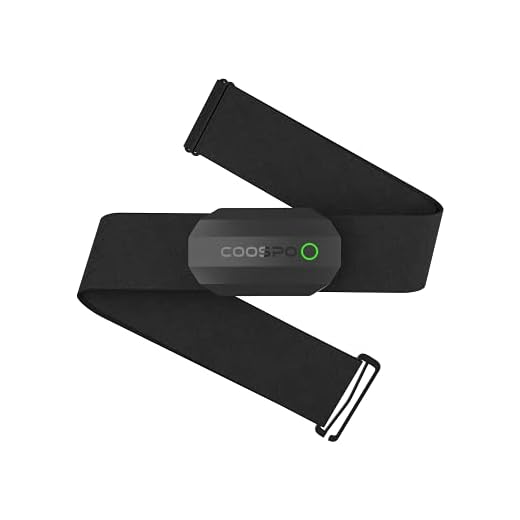
Is your strap really connected — or is it ghosting your device? Don’t start until you know.Put on the chest strap snugly, with the sensor centered on your sternum and the band comfortable but firm.
Enable Bluetooth or ANT+ on your phone or watch.
Open your training app or the device’s pairing menu.
Select the strap from the list of available sensors — look for names like “Polar H10,” “Garmin HRM,” or “Chest Heart Rate.”
Verify a stable live heart-rate reading while seated and breathing normally. Aim for a smooth number that rises and falls with breaths, not wild jumps.
If readings look erratic, try these fixes:
Note pairing quirks: some watches require adding the sensor as a “Chest heart rate” device instead of a generic Bluetooth accessory. Record the strap’s firmware version if visible—outdated firmware can later cause connectivity or alert issues.
Choose Your HR Zone Method
Percent of max, Karvonen, or custom thresholds — which one actually gets results?Decide which method fits your goals: percent of HRmax (simple), Karvonen / heart‑rate reserve (more individualized), or fully custom ranges (coach‑prescribed).
Find your HRmax by using an age‑based estimate (220 − age) or from a recent max test. Measure resting HR each morning for a week (sit quietly, record on waking) if you plan to use Karvonen.
Select the zone method in your app or device Settings → Heart Rate Zones. If unsure, start with percent‑based zones, then switch to Karvonen after you have a week of resting HR.
Use the Karvonen formula to calculate targets: Target HR = ((HRmax − HRrest) × %Intensity) + HRrest.
Example: age 40 (HRmax 180), HRrest 60 → 70% = ((180−60)×0.7)+60 = 144 bpm.
Choose from typical zones so alerts mean something practical:
Set alerts accordingly (e.g., notify when entering Zone 2 on long runs to avoid overtraining).
Set Customized Zone Thresholds and Alert Types
Turn blips into meaning: make alerts that actually punctuate your workout, not annoy you.Open the HR zone or alert settings in your app/device. Set lower and upper bpm values for each zone based on your chosen method. For example, set Zone 3 (Tempo) to 144–160 bpm if that matches your Karvonen/HRmax calculation.
Choose alert types and mix them for different workouts.
Choose one or more alert types:
Pick trigger conditions that match your session goals.
Pick trigger conditions:
Add hysteresis or debounce (for example, require 3–5 bpm or 10–15 seconds sustained) to avoid rapid on/off alerts from brief spikes. Name custom alerts (e.g., “Tempo Hold” or “Recover Now”) so they’re easy to reuse. Save settings and sync to the chest strap if required by your device ecosystem.
Open the HR zone or alert settings in your app/device. For each zone, set lower and upper bpm values based on your chosen method. Choose alert types: on-screen notification, vibration, beep, spoken cue, or a combination. Pick trigger conditions: enter-zone, exit-zone, zone-duration (e.g., alert if in Zone 4 for more than 2 minutes), or cadence combined with HR. Add hysteresis or debounce (if available) to avoid rapid on/off alerts from brief spikes. Name custom alerts (e.g., “Tempo Hold” or “Recover Now”) so they’re easy to reuse. Save settings and sync to the chest strap if required by your device ecosystem.

Test Alerts with a Short Drill
Don’t trust the settings—force them to prove themselves with a 10-minute experiment.Create a brief test workout: warm up 3–5 minutes in a low zone, then do 1–2 minutes in a higher zone and repeat 3–4 cycles to trigger both enter and exit alerts.
Perform the drill and confirm each alert type fires as expected: vibration, beep/tone, spoken cue, and on-screen. Note whether alerts are timely, noticeable, and non-distracting while moving.
Check timing and accuracy. If alerts arrive late, adjust the device sampling rate or reposition the chest strap (move it slightly up/down or moisten the electrodes). If you get false alarms from transient spikes, increase debounce (for example, require 10–15 seconds or 3–5 bpm sustained) or widen zone margins.
Record concise test notes:
Adjust thresholds or trigger conditions, re-sync to your device, and repeat the drill until alerts are reliable under real-motion conditions.
Fine-Tune, Automate, and Troubleshoot Long-Term Use
Make alerts a permanent, helpful coach—not a nag. Here’s how to keep them useful for months.Review your logs regularly and note time spent in each zone. Compare logged zones to how workouts felt and jot two quick examples (e.g., intervals felt easy while logged as Zone 4).
Enable context-aware features when available. Turn on auto-adjust to lactate threshold or select training plans that change alerts by workout type so alerts match the session (easy run vs. VO2 max).
Troubleshoot the most common issues immediately. Replace weak strap batteries, clean the contact sensors with mild soap and water, and update device/app firmware. Verify app permissions (background Bluetooth and location on some phones) so alerts run reliably during activity.
Back up critical alert profiles and export settings before major updates. Integrate with third-party platforms (Strava, TrainingPeaks) to push tailored alerts into structured workouts and automate coach-prescribed sessions.
Fine-tune by reviewing workout logs and noting time spent in zones; tweak thresholds if your perceived effort diverges from recorded zones. Enable context-aware features if available: auto-adjust to lactate threshold, training plans that change alerts by workout type, or recovery reminders based on heart-rate variability. Troubleshoot common issues: replace strap battery, clean sensors, update firmware, and ensure app permissions (background Bluetooth, location on some phones). Back up alert profiles or export settings so you can restore them after device updates. For advanced users, integrate with third-party platforms (Strava, TrainingPeaks) to push tailored alerts into structured workouts. Finally, set a quarterly review to recalibrate HRmax/resting HR and keep alerts aligned with fitness gains.
Ready to Train Smarter
With pairing, proper zone selection, thoughtful alerts, and regular tuning, your chest strap becomes a precise training companion that keeps you on target. Try it now, share your results, and start training smarter today, then refine settings for lasting improvement.
Deep dive and honestly pretty thorough. A couple of things I loved and a couple I’d change:
1) Loved the emphasis on testing in step 4 — you can’t overstate how many people skip that and then get surprised.
2) Fine-tuning section is super helpful but could use more examples of automated profiles (e.g., auto-switch to recovery zones after intervals).
3) Would be cool to have a short table of typical threshold values for different athlete levels — just as a starting point.
Overall — great work, helped me dial in my alerts for interval days.
P.S. made a small typo in my settings and accidentally had ‘alert once per zone’ — that was annoying during ladder repeats. 😅
If you want a quick baseline, some coaches use: Recovery <65% HRmax, Endurance 65-75%, Tempo 76-85%, Threshold 86-92% — adjust from there. Not perfect but a start.
A starter template would be amazing. I’m always guessing what my Recovery vs Tempo HR should be.
Fantastic feedback, Sophie. Adding automation examples and starter threshold templates is a great idea — I’ll include them. Also, thanks for the real-world ‘alert once per zone’ note — I’ll add that as a common pitfall.
Short and sweet question: when choosing HR zone method (step 2), is it better to use %max HR or lactate threshold if I don’t have lab testing?
I’m mostly doing 10k tempo runs and the %max feels a bit generic.
I agree with admin — try the 30-min test or use a recent race pace as a proxy. It’s not perfect but sharper than %max for targeted workouts.
If you don’t have lab data, a field-based lactate threshold estimate (like a 30-min time trial or a recent hard 10k pace) will usually give more useful zones for tempo/threshold work than a straight %max. %max is fine for general fitness sessions.
Good write-up but missing a tiny bit on alert types. I set my alert to ‘vibrate only’ and still get sound notifications from my watch — confuses me during group runs.
Is there a way to force silent alerts on the strap only? The guide mentions alert types but not this sync nuance.
Also, the troubleshooting section could use a short checklist for ‘no alert’ situations.
Thanks for the suggestions, Nora and Marcus — great community fixes. I’ll include model-specific steps for popular watches in the update.
If you can’t mute the watch completely, try changing alert type to vibration only on both devices. Also lower the sound volume on the watch during group runs.
I had the same issue. On my watch I went into the workout profile settings and turned off ‘Activity Alerts’ — then only the strap vibrates. Depends on watch model though.
Great point, Ivy — some watches/app combos will mirror the strap alerts as notifications. Best practice: set alerts in the chest-strap app and then mute or disable duplicate notifications on the watch/device. I’ll add a checklist for ‘no alert’ scenarios in the next update.
I followed the guide but still get inconsistent alerts after long rides (>2 hours). Steps I’ve tried: re-pair, replace battery, firmware checks. Any ideas? Here’s what happens:
– Alerts work fine for first 90 mins
– After that, alerts either stop or come delayed
– Heart rate recording still seems ok
Would the strap be overheating or is it an app timeout? Very frustrated — I rely on those zones for pacing.
Also check Bluetooth stability — some older phones have limits on continuous BLE connections. A small BT dongle or using the bike computer as the primary connection helped me.
Thanks for the detailed report, Nora — helpful. A few things to try: disable any battery-saving modes on your phone/watch during the ride, check if the app has a session timeout (some apps stop background processes after a while), and try recording with a different device to isolate whether it’s the strap or app. If the strap keeps sending HR but alerts stop, it’s likely an app/session issue.
Also try toggling data-saver and reducing other paired devices (like earbuds). Those things can hog the BLE connection.
I had delayed alerts on long rides too — turned out to be my phone’s aggressive background process manager killing the app. Whitelist the app in battery settings and it fixed it.
If none of those fix it, let me know strap model and app version and I’ll add model-specific troubleshooting steps to the guide.
Haha the testing drill made me realize I’d set my thresholds WAY too low. My strap was screaming during my easy jog — embarrassing in the park 😂
Fixed it after a 10-minute tweak session.
Pro tip: do the short drill in a quiet spot so you can actually hear/feel the alerts the first time.
That’s a classic — glad the drill helped! Doing it in a quiet spot or with a friend watching your HR is a solid tip.
LOL same — I got beeped while playing with my kid at the playground. The drill saved me from more awkwardness.
Nice guide — got my alerts set up in about 10 minutes. One tiny gripe: the screenshots are from a different app UI than mine, took me a sec to translate. Otherwise, solid.
Same here. The steps are universal though, just the labels differ. Glad it was quick for you.
Thanks Alex — noted. We’ll add a few alternate UI screenshots for popular apps in the next revision.
This guide was exactly what I needed — clear and practical!
I paired my chest strap in step 1 and then used the short drill from step 4.
The alerts worked on the first try, but I had to tweak the thresholds a bit for my threshold runs.
Tip: if your watch and strap keep losing connection, try re-pairing after a full restart of both devices.
Thanks for including the testing step — saved me from getting buzzed in the middle of a race!
Agree — the restart + firmware combo did it for me too. Nice one, Laura!
Glad it helped, Laura — great tip about restarting both devices. If reconnects keep happening, also check for firmware updates on both the strap and your watch/app.
Yup — firmware updates fixed the same issue for me. Also make sure Bluetooth on your phone isn’t trying to connect to multiple devices at once.