
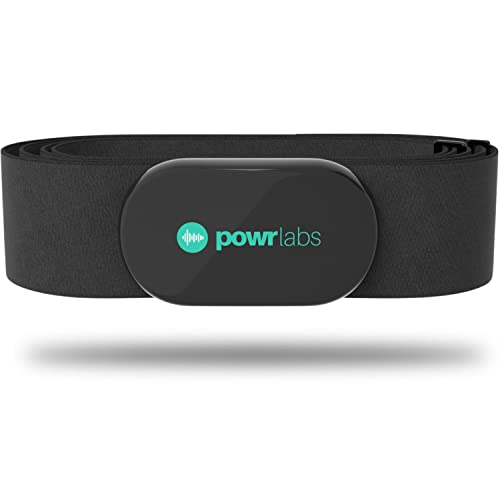
Pairing Chest Straps Quickly and Reliably
Learn to pair ANT+ and Bluetooth chest straps with gym equipment step-by-step. Avoid common pitfalls, verify reliable heart-rate data, and get workouts tracking accurately every session in minutes with confidence.
What You’ll Need

How to Pair a Garmin Heart Rate Monitor Chest Strap | Garmin HRM Run
Identify Your Strap and Equipment Compatibility
Don’t guess — the wrong protocol will waste time. ANT+ and Bluetooth aren't always interchangeable.Confirm which wireless protocol your chest strap uses: ANT+, Bluetooth, or dual-mode.
Check the strap label, companion app description, or user manual for the protocol and firmware version.
Verify the gym equipment or head unit supports that protocol.
Decide which protocol to use if the strap is dual-mode — ANT+ typically allows multiple concurrent connections; Bluetooth often pairs one device at a time.
Document strap and equipment model numbers and firmware versions in case a firmware update or manufacturer support is required.

Prepare the Chest Strap for Pairing
A dead battery or messy strap is the silent cause of pairing failure — fix it first.Clean the electrodes and elastic: moisten the electrode pads slightly (water or saliva) and wipe gently to remove sweat and oils.
Ensure the elastic band is correctly attached and the clasp or snap is secure; replace the band if frayed or loose.
Replace the battery if it’s old or the strap shows intermittent signals — typical coin cells last 1–3 years depending on use.
Power-cycle the strap if it has an on/off switch, or wet it and put it on to activate models that only transmit when making skin contact.
Remove or disable other nearby paired devices and turn off your phone’s Bluetooth temporarily to reduce interference.
Check that any USB ANT+ dongles are properly seated in the computer or console.
Wear the strap snugly under a shirt so it makes consistent skin contact to improve signal strength and pairing reliability.

Put the Gym Equipment into Pairing Mode
Gym consoles can be picky — here’s how to get them to notice your sensor.Access the equipment’s settings menu and choose Add Sensor or Pair Heart Rate. Select ANT+ or Bluetooth if the console asks; some treadmills and bikes scan automatically.
Enable any ANT+ USB dongle or internal receiver and confirm it isn’t already bound to another strap. For Bluetooth consoles, open the device list and be ready to accept a pairing request.
If pairing fails, restart the console and try again. Watch for unusual prompts (like entering a PIN) — chest straps rarely require a PIN, so that usually means the console is searching for a different device.
Keep the strap within 1–2 meters of the console during pairing to prevent signal loss. For example, sit on the bike and hold the strap close to the console while initiating the scan.
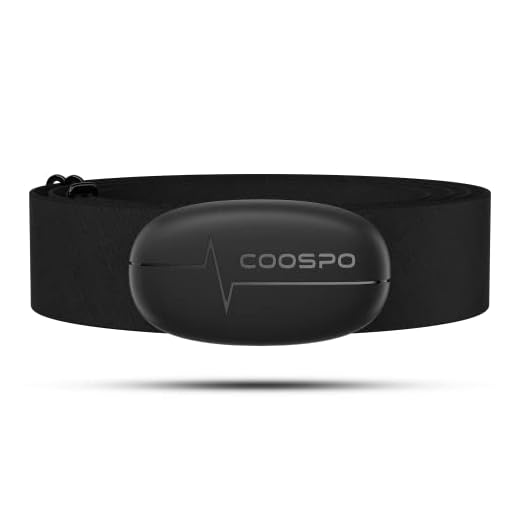
Pairing Procedure — ANT+ vs Bluetooth Walkthrough
Two protocols, two approaches — master both and pairing becomes painless.For ANT+: start a sensor search on the console while wearing the strap. Keep the strap snug against your chest and sit or stand within 1–2 m of the console. Watch the screen for a device ID or a live heart-rate readout; ANT+ often shows the numeric ID (for example, 12345). Check nearby equipment for duplicate IDs if the console still won’t connect—ANT+ supports multiple simultaneous links so duplicate IDs can cause confusion.
For Bluetooth: open the console’s Bluetooth menu and make the strap discoverable (usually by wearing it or pressing its button). Select the strap from the list. Disconnect other phones or watches if the console supports only one Bluetooth connection. If a companion app is required, pair through the app following its prompts.
After pairing, save the sensor as a preferred device if the console offers that option.
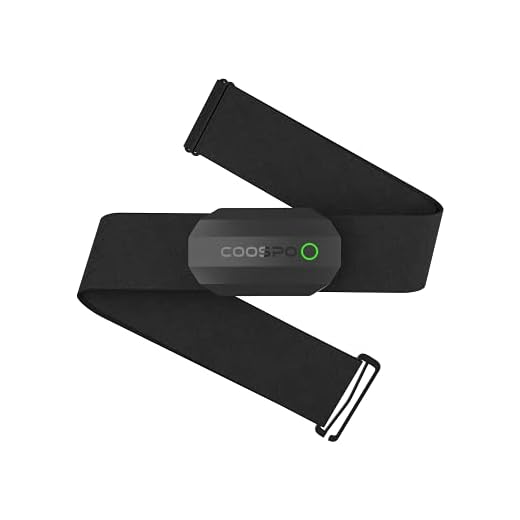
Confirm Connection and Troubleshoot Common Problems
Seeing numbers isn’t enough — verify stability and diagnose hiccups like a pro.Verify the console shows your heart rate and that readings are stable at rest and during movement (e.g., ~70 bpm at rest, rising smoothly when you jog). If you get no signal, try these steps:

Maintain and Reconnect: Best Practices for Future Sessions
Set it up once, keep it working — small habits prevent big pairing headaches.Store pairing details and preferences immediately. Write down device IDs, the strap model, and the preferred protocol (ANT+ or Bluetooth); enable auto-connect on the console if available. For example, note “ChestStrap A — ID 12345 — ANT+ primary.”
Keep the strap clean and dry between uses. Wipe sensors after every workout and air-dry the strap to prevent corrosion.
Ready, Paired, and Training
Following these steps will get your chest strap reliably connected; verify, troubleshoot, and maintain for consistent heart‑rate tracking — try it right now, share your results, and train with confidence today.
A couple of things I ran into: 1) firmware mismatch between strap and console caused weird data. 2) some gym equipment needs you to start a workout session before it’ll accept a sensor. Might be worth calling out in the guide.
Excellent points. Firmware mismatches can cause unexpected behavior — checking for firmware updates is important. Also many consoles require initiating an activity to scan for sensors; we’ll highlight that more prominently.
Yep, starting an exercise session on machines like treadmills or bikes often triggers sensor scanning.
Firmware updates solved a weird heart rate offset for me once.
Strange issue: my chest strap shows as connected on the rower but heart rate is 0 in the app. I followed the troubleshooting section but still stuck. Any ideas?
Had the same. For me it was the app not set to read sensors. Look in the app settings under ‘Devices’ and grant access.
If the equipment shows connected but the app reads 0, try this: 1) restart the app 2) ensure the app has permission to access Bluetooth 3) disconnect and reconnect the strap on the rower. If that fails, try pairing the strap directly to the phone app to verify the strap is broadcasting.
Also check for duplicate connections — my laptop was connected to the strap and kept overriding the rower.
Can someone explain the difference between ‘discoverable’ and ‘pairing’ modes? The guide touched on it but I’m still fuzzy.
Sure — ‘discoverable’ generally means the device is advertising itself so other devices can find it. ‘Pairing’ involves exchanging keys and establishing a trusted connection (often a one-time setup). On some gym consoles, discoverable = visible to any sensor; pairing = actively connecting to a sensor. Essentially: discoverable = visible, pairing = bonded.
Good question. Think of discoverable as “Hey I’m here!” and pairing as “Let’s be friends forever (or until you unpair).”
I laughed at the ‘Ready, Paired, and Training’ title — so true 😂. But on a serious note, does the guide recommend any specific apps that consistently handle BT pairing well?
I’ve had the most consistent luck with Wahoo Fitness for generic BT sensors.
Garmin Connect is great if you’re in the Garmin ecosystem.
Ha! Glad that landed. For Bluetooth, apps like Wahoo Fitness, Polar Beat, and Garmin Connect are generally solid. For ANT+, apps that support ANT+ plugins or native ANT+ (like some cycling apps) work best. Specific app choice may depend on your strap brand.
Thanks for the step-by-step — especially the part about toggling airplane mode to clear Bluetooth clutter. Saved me from pulling out hair. Also, funny that ANT+ is still king for some setups.
Airplane mode is a handy trick for clearing competing radios. Happy it helped!
I use airplane mode on my phone then re-enable Wi‑Fi only — keeps Bluetooth tidy for pairing.
ANT+ still feels like the reliable old workhorse. 😂
Made a dumb mistake and tried pairing while the strap was under my shirt — don’t do that, it confuses the process 😂
Pro tip: put the strap on, step outside the gym (less interference), then pair. Worked first try for me.
Also avoid being next to heavy gym equipment with lots of electronics — those can cause weird dropouts.
Haha totally — sometimes the simplest environment changes reduce interference. Good tip about stepping away from crowded BLE environments.
Really liked the step with visual indicators — blinking patterns helped me know exactly what was happening. One request: add common LED color charts for popular models (Garmin, Polar, Wahoo) in future.
Seconded. A cheat sheet for blink patterns would save time.
Yes please, my Polar shows different blue patterns and I had to Google for ages.
Thanks for the suggestion — adding a quick LED-color reference for common models is a great idea. We’ll work on including that in the next update.
After following the guide, my strap paired but occasionally drops during interval sprints. The “Confirm Connection and Troubleshoot” section helped a bit, but any advanced tips? Could it be sweat? Temperature? Annoying mid-workout drops.
Sweat itself usually doesn’t cause drops; it’s more the movement and bad contact.
Mine would drop during sprints too — turned out the elastic had stretched. Replaced the strap and problem gone.
Interval sprints can expose weak contacts or movement issues. Try tightening the strap a bit, ensure electrodes are clean, and check for firmware updates on both devices. If your strap has replaceable electrodes, consider swapping them. Also try running the strap to a different receiver (phone/app) during intervals to isolate whether it’s the strap or the console.
Really helpful walkthrough — saved me a ton of time. I had an older Polar H7 and a new treadmill that both support ANT+, but the treadmill wouldn’t detect the strap until I toggled Bluetooth off on my phone. Weird, but the “Prepare the Chest Strap” step was spot on.
One question: is it normal to need to keep the strap moist during pairing? I did a quick drink splash and it paired instantly.
Totally normal. Mine’s ancient and I always wet it slightly before sessions. Works like a charm.
Also make sure it’s snug — I learned the hard way that a loose strap can act like it’s disconnected even when paired.
Yep, moisture helps the electrodes get a good contact which some straps need to wake up. Glad the guide helped — toggling other wireless radios can reduce conflicts during pairing.
Minor nitpick: the screenshot for putting the equipment in pairing mode was tiny on mobile. Had to squint. Otherwise awesome steps. 🙂
Same here, on my phone I had to rotate to landscape. The steps are great, though.
Thanks for the heads-up — we’ll update the mobile images for clarity in the next revision.
Glad it wasn’t just me! Also a dark mode would be clutch 🌙
The sarcasm in a couple of replies was hilarious, but seriously: the guide helped me pair my strap with the gym bike after 3 failed attempts. My one issue was the battery icon — does the guide cover exact battery thresholds to replace the cell? I couldn’t find a number.
Glad it worked out! We kept battery guidance general because thresholds vary by strap model. A typical rule: if you see irregular readings, short battery life between sessions, or the strap refuses to enter pairing mode, it’s time to replace the coin cell (often CR2032). We’ll consider adding model-specific thresholds.
If you’re getting intermittent data, battery is a prime suspect. Replace and retest.
Agreed — no shame in swapping a cheap cell to rule it out.
Is there a general rule for how long a chest strap should be placed in pairing mode? My strap blinks for a few seconds then turns off. The guide says hold a button, but timings vary.
My Mio strap times out in 15 sec. Some wear a long press + wetting the sensors helps keep it active.
Different brands vary. A good rule: hold the button until the light starts flashing rapidly (usually 3–10 sec) and keep it awake by tapping the electrodes or giving a slight squeeze if needed. If it times out quickly, try removing and reinstalling the battery or consult the strap manual for the exact hold time.
Anybody tried pairing two devices at once? Want to stream to my bike console and phone simultaneously. The guide mentions reconnection best practices but not dual connections.
I’ve had success with ANT+ to bike computer and Bluetooth to phone for live metrics, but it’s model-dependent.
Good question. ANT+ supports broadcasting to multiple receivers simultaneously (most straps do), so you can usually pair to bike console and a head unit. Bluetooth typically allows only one active connection to a sensor, though some chest straps support dual-mode (broadcast + one connection). Check your strap’s manual for dual-connection support.
If you need both on Bluetooth, you might be out of luck unless the strap explicitly supports multiple BT connections.
Followed the ANT+ vs Bluetooth walkthrough and the ANT+ steps were easier than I expected. If anyone’s wondering: my Garmin detected the strap immediately after I put the treadmill in pairing mode. No app needed.
Good tip — for many devices, ANT+ is indeed simpler because it’s designed for sensors. Bluetooth often requires the app to handle the connection.
Agreed. ANT+ is more “sensor-y” and less buggy with old gym equipment. Bluetooth can be finicky with multiple open connections.
Love the “Maintain and Reconnect” tips. I started storing my strap damp in a zip bag (gross, I know) and it lived longer. Don’t do that tho — follow the cleaning section. Also the battery life trick (unpair when not in use) actually saved me during travel.
Great anecdote — storing damp can cause corrosion over time. Glad the unpair tip helped during travel!
I leave mine battery-out during long trips. Batteries and moisture are a bad combo.
I just keep mine in a dry drawer and wipe after workouts. Less drama.
Left my ANT+ USB stick in my laptop and the treadmill wouldn’t find the strap — turned out the stick was hogging the signal. Removed it and boom. Might be obvious but worth mentioning.
Yep, I mentioned toggling other radios in an earlier comment — it makes a huge difference!
Great practical share — local ANT+ receivers can indeed steal the pairing. Best practice: unplug or disable other nearby receivers during initial pairing.
Also check PC apps that auto-connect to sensors, they can silently steal the strap.