Fast, Reliable ANT+ Pairing: What You Need to Know
A dead or noisy heart-rate signal is more than an annoyance — it can wreck training and waste time. ANT+ chest straps are precise and low-latency, but they still need correct setup. This guide shows quick checks and exact steps so you pair reliably before you ride.
Read this brief primer to prepare devices, settings, and your strap so pairing is fast. You’ll get a step-by-step workflow for common cycling computers, simple verification checks to confirm heart-rate data, and targeted fixes for interference, battery, or firmware issues. Follow the care and maintenance tips to minimize future problems and spend more time training and less time troubleshooting. Start in minutes, not hours. Enjoy.
ANT+ is a lightweight radio language that sensors and receivers use to talk. Think of it as a common vocabulary: a heart-rate strap sends standardized “heart-rate” messages and any ANT+-aware device (bike computer, head unit, watch) can understand them. The protocol is optimized for low power and fast updates — ideal for real-time training data.
Broadcasting vs. pairing (search-and-bind)
Some sensors simply broadcast continuously; anyone listening on the right channel can read the data. Other setups use pairing (also called search-and-bind), where the receiver locks onto a sensor’s unique device ID so you get a persistent, exclusive feed.
Broadcast: quick and simple, but in crowded environments you can pick up the wrong sensor.
Pairing: takes an extra step but prevents cross-talk and keeps a stable connection.
Why chest straps are often preferred for heart rate
Chest straps measure the electrical signal of your heart (ECG-style) rather than optical pulse, so they’re more accurate, especially during intervals or high cadence. They send frequent, low-latency packets that cycling computers can use for instantaneous power-zone decisions and smarter training metrics. In group rides, pairing your strap to your device avoids reading a neighbor’s heart rate — a common anecdote among racers who accidentally trained to someone else’s effort.
Editor's Choice
Polar H10 Waterproof Bluetooth ANT+ Chest Strap
Most accurate Polar heart rate sensor
Polar’s H10 delivers industry-leading heart rate accuracy and supports Bluetooth, ANT+, and 5 kHz connections for simultaneous pairing. The improved strap is comfortable, waterproof, and includes internal memory for offline recordings.
ANT+ uses standardized profiles (Heart Rate Monitor profile, Cycling Power, etc.), so any compliant strap should work with any compliant head unit. Important tips:
Confirm your cycling computer lists “ANT+ Heart Rate” in supported sensors.
Many modern straps (Polar H10, Wahoo TICKR, Garmin HRM series) support both ANT+ and Bluetooth — pick the protocol your device prefers.
ANT+ shines in multi-device setups: a single strap can broadcast to multiple receivers simultaneously (bike computer, watch, phone). Bluetooth LE typically allows one active connection at a time, so ANT+ is better for riders who want their watch and head unit to both display HR data.
2
Prepare Before You Pair: Items, Settings, and Checks
Good preparation cuts pairing time from minutes to seconds. Below are the practical items and quick checks to run through before you press “search” on your bike computer.
Essential hardware and power checks
Replace or fully charge the strap battery (many use CR2032 cells or a small rechargeable pod). A weak battery often looks like a connection problem.
Confirm battery contacts are clean and the strap module is seated correctly in its housing.
Bring a spare CR2032 or a charged replacement module on long rides to avoid surprises.
Long-Range
moofit HR8 Bluetooth ANT+ Chest Heart Monitor
Low-energy Bluetooth 5.0 with long range
The moofit HR8 provides real-time, low-energy heart rate data with ±1 BPM accuracy via Bluetooth 5.0 and ANT+. It’s IP67 sweatproof, has a breathable adjustable strap, and a replaceable CR2032 battery offering up to ~500 hours of use.
Wet the electrode areas or use a dab of conductive gel—this reduces pairing failures and improves signal quality, especially in cold or dry weather.
Fit the strap snugly under the sternum; too loose = intermittent signal. If you’ve ever had your HR drop to zero mid-interval, loose contact is usually the culprit.
Clean the strap after sweaty rides; salt buildup degrades conductivity over time.
Device settings and compatibility checks
Verify your cycling computer has ANT+ enabled and supports the “Heart Rate Monitor” profile. Typical menu paths: Settings > Sensors > Add Sensor or Sensors > Search.
Update the computer firmware to the latest recommended release — many pairing bugs are fixed in updates.
Note the exact sensor menu location on your device now so you don’t hunt for it while the strap times out.
Interference and quick proximity checks
Power down or remove other nearby sensors (watches, phones, trainer transmitters) to prevent cross‑talk.
Quick checks before searching:
Wake the strap by moving or putting it on — the strap ID often broadcasts when active and will appear in your device’s search list.
Keep devices close during setup: position the strap and head unit within 30–100 cm (1–3 feet) for fastest discovery.
With these checks done, you’ll be ready to follow a focused, reliable pairing sequence — next we’ll step through that exact process.
3
Step-by-Step Pairing Process for a Chest Strap and Cycling Computer
Wake the strap and get ready
Put the strap on briefly or moisten the electrodes so it begins broadcasting. Most straps (Garmin HRM-Dual, Wahoo TICKR, Polar H10) wake as soon as they detect skin contact or a bit of movement—think of this as “turning the sensor on” before you search.
When multiple results appear, select the sensor that matches the printed ID on the strap module or the strongest signal.
Confirm/Save the pairing. The unit will usually show “Paired” then live BPM within a few seconds.
Do a quick activity start to ensure real-time data updates (zero lag, no dropouts).
Explicit-pair vs broadcast-only sensors
Explicit-pair sensors: the head unit stores a unique ANT+ ID (common with Garmin/Wahoo). This prevents accidental cross‑connects—ideal for recurring use.
Broadcast-only sensors: appear as a generic HR broadcast and can be picked up by multiple devices simultaneously (useful if you want both bike and watch to read at once).
If your unit asks whether to add by “ANT+ ID” or “Generic HR,” choose:
“ANT+ ID” when you want a dedicated, single-device pairing (preferred for training).
“Generic HR” when you need multiple devices to monitor the same strap.
Multiple-user rides and avoiding mix-ups
Label the strap case or module with the last 4 digits of its ANT+ ID (found on the module or in the sensor info).
If many sensors appear, temporarily move others out of range or have teammates pause their straps during your pair.
Use signal-strength selection: bring the strap very close (10–30 cm) to the head unit to make it the strongest.
Quick verification
Look for steady BPM and “Connected” or green icon. If the reading is erratic, re-seat the strap and re-run the Add Sensor routine.
If pairing still stalls, the next section walks through targeted fixes and diagnostics.
4
Verifying the Connection and Interpreting Indicators
What your head unit or app should show
Most cycling computers and apps display a heart icon, a green “Connected/Paired” status, or the sensor name/ID in the Sensors menu when the ANT+ HR link is active. Look for:
A steady BPM readout (not “—” or “Searching”).
Sensor name or last 4–6 digits of the ANT+ ID to confirm the exact strap.
A battery icon or percent if the strap reports battery status.
Expect to see updates once per second (1 Hz) on most consumer straps, with visible latency under ~1 second. Some modern sensors/receivers support higher update rates (up to 4 Hz) for smoother data during sprints.
Confirm sensor ID & battery quickly
Open Sensor Info on your device to verify the ANT+ ID matches the label on the strap module and check any battery readout. If a device shows “Low Battery,” swap or recharge the battery before a long ride.
Best for Garmin
Garmin HRM 200 Accurate Heart Rate Monitor
Machine-washable strap with HRV data
Garmin HRM 200 transmits precise heart rate and HRV to compatible Garmin watches, cycling computers, and apps. It features a comfortable, machine-washable strap, durable 3 ATM water rating, and a user-replaceable battery with long life.
Perform a short on-bike test to confirm responsiveness:
30 seconds easy cadence, then 20–30 seconds hard surge (or a sprint).
Or briefly stand and pedal hard for 10–15 seconds.
A healthy strap will reflect the rise/fall in heart rate within 1–3 seconds and show smooth transitions. If BPM lags 5–10+ seconds, jumps erratically, or freezes, note it — that indicates pairing, broadcast, or sensor issues.
When other devices are also receiving HR
If your phone, smart trainer, or a teammate’s device is also getting the signal, you may see duplicate sources or cross‑picks. To avoid confusion:
Prefer “ANT+ ID” (explicit pair) on your head unit for a dedicated link.
Disable HR on secondary devices, or set priority in your head unit’s sensor list.
If using apps like Zwift, ensure only the intended receiver (ANT+ USB stick vs phone) is active.
If readings look off during this validation, the next section digs into targeted troubleshooting steps to fix them.
5
Troubleshooting: Common Pairing Problems and Fixes
No sensor found
If your head unit or app can’t see the strap, try these quick wins first:
Wake the strap: put it on or tap the module — many straps only broadcast when wet/attached.
Replace the battery: a dead CR2032 is the top cause of “no sensor” reports.
Move away from interference: step 2–3 meters from computers, trainers, or crowded Bluetooth devices.
Try a different receiver: test with a phone or another bike computer (Edge 530, Wahoo ELEMNT Bolt) to isolate the issue.
Incorrect or erratic readings
Erratic BPM or jumps are often physical, not digital:
Moisten the electrodes and re-seat the strap; dry skin or a gap will cause dropouts.
Reposition the strap lower on the sternum and tighten; loose straps or tight jerseys can shift the module.
Remove competing clothing layers or heart pads; compression garments can separate electrodes.
Test with a known-good strap (Garmin HRM-Dual, Polar H10) to confirm the head unit.
Duplicate sensors or wrong user’s sensor
Seen someone else’s heart rate or multiple identical sources? Fix it by confirming the ANT+ ID:
Open Sensor Info on your device and read the last 4–6 digits of the ANT+ ID.
If it’s not yours, “Forget” or unpair the unwanted sensor, then re-scan and explicitly add the correct ID.
Must-Have
CooSpo USB ANT+ Dongle for Cycling Software
Plug-and-play ANT+ for Zwift and trainers
This USB ANT+ stick connects your PC or Mac to trainers, power meters, cadence and heart rate sensors, automatically uploading workout data to Zwift, TrainerRoad, Garmin Connect and other apps. It supports FE-C and common cycling data types for seamless training.
Rinse electrodes with water after sweaty rides; salt accelerates corrosion and noise.
Hand-wash the elastic band with mild soap; avoid bleach, fabric softener, or hot dryers.
Re-seat the strap low on the sternum and keep it snug — a loose strap is the most common real-world cause of spikes.
Top Accuracy
Polar H10 Waterproof Chest Heart Rate Monitor
Same trusted accuracy in red design
The Polar H10 in red offers the same highly accurate heart rate measurement with Bluetooth, ANT+, and 5 kHz connectivity. It includes a comfortable anti-slip strap, waterproof construction, internal memory, and a CR2025 battery.
CR2032 battery straps: carry a spare lithium CR2032 (Energizer/Sony) and change annually or sooner with heavy use (every 6 months for daily riders).
Rechargeable straps (e.g., Wahoo TICKR Rechargeable): charge after long rides or weekly if you ride often; a quick 10–15 minute top-up before events removes surprises.
Store dry and ventilated; remove the module from the strap for long-term storage to prevent sweat-induced corrosion and unnecessary broadcasting.
Firmware, sensor lists, and multi-user tips
Check firmware monthly or before event weekends; many fixes are in small updates.
Keep your device’s sensor list tidy: “Forget” unused or duplicate sensors and rename active ones (or note the last 4–6 ANT+ ID digits).
In shared environments (team bikes, gyms), label straps physically and log ANT+ IDs in your phone notes to avoid accidental pairing.
Ride-day checklist & quick in-field fixes
Checklist: strap damp and positioned, head unit on with ANT+ enabled, phone away/airplane mode if needed, spare battery or cable.
Quick fixes: re-wet electrodes, reclip module, power-cycle head unit, move away from other electronics, swap to Bluetooth if available, or briefly unpair/re-pair the sensor.
Carry a tiny multi-tool, a spare CR2032, and a ziplock to keep a wet strap isolated from other gear.
These small habits cut most recurring problems and get you back to riding fast. Next, the Conclusion will recap and offer next steps.
Quick Recap and Next Steps
Prepare devices, confirm battery and ANT+ compatibility, and follow the step-by-step pairing process carefully. Verify the connection by checking signal indicators, heart rate readings, and device menus. Use the troubleshooting checklist — restart devices, clear old sensors, reduce interference, and re-pair — when issues arise.
Keep maintenance habits and quick fixes handy: dry and store the strap properly, replace batteries as needed, and update firmware. If problems persist after troubleshooting, consult your device manuals or manufacturer support for device-specific guidance. Happy training — reliable ANT+ connections are usually one clear step away. Bookmark this guide or share it with teammates.
Short and sweet — I used the Powr Labs Bluetooth ANT+ Chest Heart Monitor and the guide made pairing to my phone + bike computer seamless. The ‘Verify Indicators’ pictures matched exactly, which was reassuring. Thumbs up!
Thanks Isabella — glad the indicator visuals helped. We tried to make that section picture-heavy for exactly this reason.
Marcus Hale
on October 10, 2025
Powr Labs is solid for the price. If anyone’s considering between Powr Labs and moofit, the build quality felt better on my Powr Labs unit.
Natalie Price
on October 9, 2025
Constructive feedback: this was a helpful article overall, but I think it could do better explaining firmware updates for chest straps. A few products (like Polar H10) get firmware fixes that resolve pairing bugs — the article only briefly mentions checking for updates but doesn’t show how or where to check. Also, a couple images were a bit small on mobile.
Still, nice job covering a wide range of products (Powr Labs, moofit, CooSpo, Garmin).
Evelyn Grant
on October 9, 2025
Agreed on firmware — fixed an intermittent pairing issue for my Polar H10 last month. Definitely worth calling out the update process.
Thanks Natalie — great point. We’ll add a compact ‘How to check and apply firmware updates’ subsection with links for Polar, Garmin, and generic instructions. We’ll also optimize images for mobile sizes in the next revision.
Natalie Price
on October 10, 2025
I’ll add: Polar H10 updates through the Polar Beat app. Garmin usually uses Garmin Express for firmware. Hope that helps others.
Ethan Zhang
on October 9, 2025
I pair chest straps to Zwift via a PC and the CooSpo USB ANT+ Dongle. The article’s ‘Step-by-Step Pairing’ was useful, but for PC users: make sure your ANT+ driver is up to date and that any USB power-saving is disabled — I lost hours troubleshooting that. Also, Zwift will only see one ANT+ sensor per type sometimes, so close other apps that might be grabbing the strap.
Extra: on Windows, the Device Manager will show the dongle. If it disappears, re-plug into a non-USB3 port (USB3 can cause interference).
Kevin Liu
on October 9, 2025
USB3 interference is real — had my ANT+ dongle work in a front port but not a rear USB3 port. Moving it fixed it instantly.
Thanks Kevin and Priya — adding those to the PC section now.
Oliver Grant
on October 9, 2025
One more: if Zwift won’t see the HR strap, try pairing it first in your Bluetooth settings (to make sure it’s awake) then open Zwift. Works for stubborn sensors sometimes.
Great additions, Ethan. We included a short PC troubleshooting checklist but will expand it with your USB3 note and closing background apps — very practical.
Priya Menon
on October 10, 2025
Also check for other USB devices like external HDDs drawing power. They can cause weird behavior with dongles.
Maya Carter
on October 11, 2025
Great article — saved me a ton of time. I was about to return my Polar H10 Waterproof Bluetooth ANT+ Chest Strap because it wouldn’t pair with my old Edge cycling computer. Followed the ‘Prepare Before You Pair’ checklist (turned off phone BT, removed old sensors) and boom — paired in under a minute.
A couple of additions that helped me:
– Wet the electrodes slightly before strapping on (old trick but works).
– Make sure the strap module isn’t asleep — short press to wake.
– If using a CooSpo USB ANT+ Dongle with PC software, disable Windows Bluetooth to avoid conflicts.
Thanks for the clear step-by-step!
Elena Park
on October 12, 2025
Maya, thanks — your point about the strap being asleep was the missing piece for me. Was pairing flaky until I woke the unit.
Tom Rivers
on October 12, 2025
Nice tips — I always forget to wake the sensor. Also, for anyone on older Garmins, sometimes deleting the device and re-adding (not just searching) is what finally works.
Awesome, Maya — glad the checklist helped. Good tip about waking the sensor. We added a short note about disabling PC Bluetooth when using the CooSpo dongle in the troubleshooting section based on feedback like yours.
Grace Hill
on October 11, 2025
Nice guide! Followed the troubleshooting steps and got my CooSpo dongle + HR strap working with TrainerRoad. 😊
Yay! Glad it worked for you, Grace — TrainerRoad + CooSpo is a common combo and we tried to cover those pitfalls.
Sam Beck
on October 12, 2025
Same here — CooSpo + TrainerRoad on Windows 10, just had to disable Bluetooth. Worked fine after that.
Liam O'Neil
on October 13, 2025
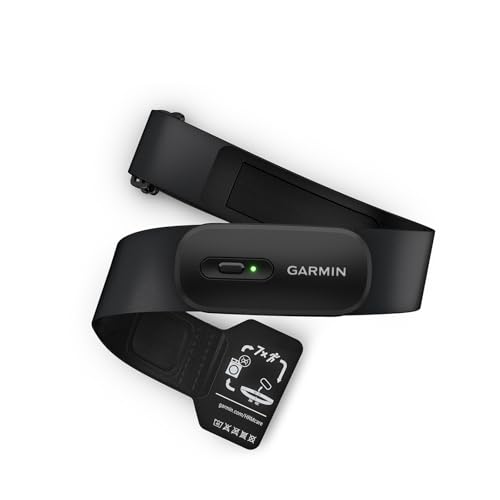
So apparently my Garmin HRM 200 has a mind of its own. One ride it pairs instantly, next ride it acts like a cat and hides. 😂 Article was helpful though — the ‘Verifying the Connection’ LED guide was clutch. Also: did anyone else notice some manufacturers label ANT+ as ‘ANT’ only? Confusing!
Sara Voss
on October 13, 2025
Yep, Garmin labeled mine weirdly too. If it behaves like a cat, try resetting sensors in the device menu and re-pairing — usually calms it down 😅.
Thanks Liam — yes, some older models just say ‘ANT’ or use a tiny icon. We tried to include screenshots and alternate labels in the updated section to help with that label confusion.
Sophie Brooks
on October 23, 2025
Quick question — anyone know how long the moofit HR8 Bluetooth ANT+ Chest Heart Monitor battery lasts in real-world use? The article mentions general battery tips but not actual runtimes.
I’m mostly doing 2-3 hour rides and some weekend runs.
Good question, Sophie. Typical CR2032-type coin cell runtimes for these straps are often 200–300 hours of use, but moofit HR8 can vary by firmware and how often you leave it broadcasting. If you do a lot of Bluetooth and ANT+ simultaneous sessions, you’ll see reduced life. We’ll add a note with ranges for each product.
Marta Ruiz
on October 24, 2025
Mine (moofit) died mid-ride once — pro tip: carry a spare coin cell if you’re doing longer events.
Alex Morgan
on October 24, 2025
I have a moofit HR8 — with 3-4 rides/week (2 hours each) it lasted about 6 months for me. YMMV depending on how you store it between rides.
Benjamin Flores
on October 24, 2025
Short opinion: ANT+ still wins for multi-device broadcasting. I use a Polar H10 and pair to both my Garmin and phone simultaneously with no drops. Bluetooth tends to be flakier when app + device compete. Article makes that clear, nice job.
Thanks Benjamin — that’s the exact use-case we wanted to highlight in ‘How ANT+ Works and Why Chest Straps Are Different.’ ANT+ is designed for multiple listeners which is why it often feels more stable for multisession setups.
All great points. We’ll keep the section updated as Bluetooth LE multi-device support evolves.
Ben Torres
on October 25, 2025
Small caveat: sometimes Bluetooth LE apps get updates that fix connectivity; it’s improving. But ANT+ still has the multi-listener edge.
Hannah Lowe
on October 25, 2025
Agree. I only use Bluetooth if I’m just pairing to my phone for a run. For rides with a bike computer, ANT+ all the way.
Olivia Stone
on October 27, 2025
Small note: the product list mentions Polar H10 twice (once as ‘Polar H10 Waterproof Bluetooth ANT+ Chest Strap’ and again as ‘Polar H10 Waterproof Chest Heart Rate Monitor’). Kinda made me think there are two versions. Can you clarify if that’s a duplicate or two different listings?
Jared Cole
on October 27, 2025
Thanks for flagging — I almost bought both 😂. Polar H10 is a solid choice though.
Good catch, Olivia — that’s a duplicate naming in our product list. They’re the same Polar H10; we’ve consolidated the entries to avoid confusion. Thanks!
Rachel Moore
on November 2, 2025
Quick compatibility check: I’m thinking of getting a Garmin HRM 200 but I use an old Edge 520 and sometimes my laptop with Zwift (via CooSpo dongle). Will the HRM 200 work for all three at once, or will I have to switch connections? Appreciate a quick yes/no and why.
Short answer: Yes, GARMIN HRM 200 (ANT+) should broadcast to multiple ANT+ listeners simultaneously (Edge + laptop via CooSpo), so you shouldn’t need to switch. If you also try to pair over Bluetooth at the same time to your phone, that could complicate things depending on how the HR strap handles dual-mode. ANT+ for multiple devices works well.
Also: when using Zwift via PC, ensure the CooSpo dongle has a clear line-of-sight (not tucked behind a metal laptop) to reduce dropouts.
Rachel Lin
on November 3, 2025
I do exactly that — Edge + Zwift via dongle + phone app (occasionally) — usually fine. If Zwift loses it, close any other apps that might be holding the sensor.
Daniel Kim
on November 13, 2025
Longer tip for people who keep having intermittent drops:
1) Ensure the strap sits snug and centered across the sternum — if it’s too low/high the ECG contacts may lose good contact.
2) Moisten the electrodes before rides (not soaking, just damp) — especially in winter when skin is dry.
3) Replace the elastic strap every couple years; elasticity loss = poor contact.
4) If your device supports it, lock the paired sensor in the device menu to prevent accidental pairing grabs by other nearby devices.
These small maintenance things fixed months of frustration for me. Article touched on maintenance but wanted to expand on practical placement tips.
Samir Khan
on November 14, 2025
That conductive gel tip is next-level. Never thought about it but makes sense for races or long TT efforts.
Daniel Kim
on November 14, 2025
Yep — only for emergencies, not for daily use. Good hygiene reminder too!
Excellent, Daniel — appreciate the placement and maintenance specifics. We’ll expand the ‘Care, Maintenance, and Best Practices’ section to include these steps.
Naomi Brooks
on November 14, 2025
Those placement tips are gold. Locking the sensor option really saved me at group rides where phones were trying to pair.
Noah Patel
on December 18, 2025
Ugh. Followed everything but my chest strap just won’t show up on the bike computer. It was working yesterday. I tried cleaning the contacts, replacing the battery, toggling ANT+ on the computer, and even rebooting the whole thing. Any other magic tricks? Also — is the Garmin HRM 200 compatible with older Edge 500s or nah?
Help pls, I’m riding tomorrow and don’t want to guess my effort.
Also — if you suspect the strap is the issue, short the contacts with a wet finger while searching; sometimes wetting helps re-establish the broadcast for pairing.
Hey Noah — sorry about the last-minute stress. Try these quick checks: 1) Remove any other paired HR sensors from the Edge, 2) Pair in the device’s sensor search menu (not quick connect), 3) Try pairing the HRM to your phone/app to confirm the strap still broadcasts. Edge 500 should support ANT+ HR straps like the HRM 200, but firmware updates on the Edge help (if possible).
Dylan Price
on December 20, 2025
If you have a friend with a watch/phone, try pairing to that — if it pairs elsewhere, it’s your Edge. If not, strap might be dead even after battery change (bad batch happens).
Michael Torres
on December 21, 2025
Took me three cups of coffee and a tournament of patience but finally paired my moofit HR8 with the bike computer. 😂 The ‘Troubleshooting’ flowchart in the article was perfect for diagnosing where it failed (it was the strap, not the computer). Good read.
Kelly Wu
on December 21, 2025
Coffee+patience = universal pairing protocol. Glad you got it working!

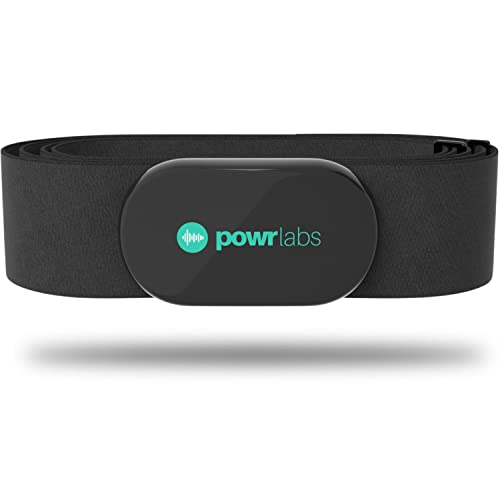




Short and sweet — I used the Powr Labs Bluetooth ANT+ Chest Heart Monitor and the guide made pairing to my phone + bike computer seamless. The ‘Verify Indicators’ pictures matched exactly, which was reassuring. Thumbs up!
Thanks Isabella — glad the indicator visuals helped. We tried to make that section picture-heavy for exactly this reason.
Powr Labs is solid for the price. If anyone’s considering between Powr Labs and moofit, the build quality felt better on my Powr Labs unit.
Constructive feedback: this was a helpful article overall, but I think it could do better explaining firmware updates for chest straps. A few products (like Polar H10) get firmware fixes that resolve pairing bugs — the article only briefly mentions checking for updates but doesn’t show how or where to check. Also, a couple images were a bit small on mobile.
Still, nice job covering a wide range of products (Powr Labs, moofit, CooSpo, Garmin).
Agreed on firmware — fixed an intermittent pairing issue for my Polar H10 last month. Definitely worth calling out the update process.
If anyone wants, drop the model and platform you use and we’ll include step-by-step firmware pointers for the most common combos.
Thanks Natalie — great point. We’ll add a compact ‘How to check and apply firmware updates’ subsection with links for Polar, Garmin, and generic instructions. We’ll also optimize images for mobile sizes in the next revision.
I’ll add: Polar H10 updates through the Polar Beat app. Garmin usually uses Garmin Express for firmware. Hope that helps others.
I pair chest straps to Zwift via a PC and the CooSpo USB ANT+ Dongle. The article’s ‘Step-by-Step Pairing’ was useful, but for PC users: make sure your ANT+ driver is up to date and that any USB power-saving is disabled — I lost hours troubleshooting that. Also, Zwift will only see one ANT+ sensor per type sometimes, so close other apps that might be grabbing the strap.
Extra: on Windows, the Device Manager will show the dongle. If it disappears, re-plug into a non-USB3 port (USB3 can cause interference).
USB3 interference is real — had my ANT+ dongle work in a front port but not a rear USB3 port. Moving it fixed it instantly.
Thanks Kevin and Priya — adding those to the PC section now.
One more: if Zwift won’t see the HR strap, try pairing it first in your Bluetooth settings (to make sure it’s awake) then open Zwift. Works for stubborn sensors sometimes.
Great additions, Ethan. We included a short PC troubleshooting checklist but will expand it with your USB3 note and closing background apps — very practical.
Also check for other USB devices like external HDDs drawing power. They can cause weird behavior with dongles.
Great article — saved me a ton of time. I was about to return my Polar H10 Waterproof Bluetooth ANT+ Chest Strap because it wouldn’t pair with my old Edge cycling computer. Followed the ‘Prepare Before You Pair’ checklist (turned off phone BT, removed old sensors) and boom — paired in under a minute.
A couple of additions that helped me:
– Wet the electrodes slightly before strapping on (old trick but works).
– Make sure the strap module isn’t asleep — short press to wake.
– If using a CooSpo USB ANT+ Dongle with PC software, disable Windows Bluetooth to avoid conflicts.
Thanks for the clear step-by-step!
Maya, thanks — your point about the strap being asleep was the missing piece for me. Was pairing flaky until I woke the unit.
Nice tips — I always forget to wake the sensor. Also, for anyone on older Garmins, sometimes deleting the device and re-adding (not just searching) is what finally works.
Awesome, Maya — glad the checklist helped. Good tip about waking the sensor. We added a short note about disabling PC Bluetooth when using the CooSpo dongle in the troubleshooting section based on feedback like yours.
Nice guide! Followed the troubleshooting steps and got my CooSpo dongle + HR strap working with TrainerRoad. 😊
Yay! Glad it worked for you, Grace — TrainerRoad + CooSpo is a common combo and we tried to cover those pitfalls.
Same here — CooSpo + TrainerRoad on Windows 10, just had to disable Bluetooth. Worked fine after that.
So apparently my Garmin HRM 200 has a mind of its own. One ride it pairs instantly, next ride it acts like a cat and hides. 😂 Article was helpful though — the ‘Verifying the Connection’ LED guide was clutch. Also: did anyone else notice some manufacturers label ANT+ as ‘ANT’ only? Confusing!
Yep, Garmin labeled mine weirdly too. If it behaves like a cat, try resetting sensors in the device menu and re-pairing — usually calms it down 😅.
Thanks Liam — yes, some older models just say ‘ANT’ or use a tiny icon. We tried to include screenshots and alternate labels in the updated section to help with that label confusion.
Quick question — anyone know how long the moofit HR8 Bluetooth ANT+ Chest Heart Monitor battery lasts in real-world use? The article mentions general battery tips but not actual runtimes.
I’m mostly doing 2-3 hour rides and some weekend runs.
Sophie, also check for replaceable vs rechargeable wording in the product listing — that can change maintenance steps.
Good question, Sophie. Typical CR2032-type coin cell runtimes for these straps are often 200–300 hours of use, but moofit HR8 can vary by firmware and how often you leave it broadcasting. If you do a lot of Bluetooth and ANT+ simultaneous sessions, you’ll see reduced life. We’ll add a note with ranges for each product.
Mine (moofit) died mid-ride once — pro tip: carry a spare coin cell if you’re doing longer events.
I have a moofit HR8 — with 3-4 rides/week (2 hours each) it lasted about 6 months for me. YMMV depending on how you store it between rides.
Short opinion: ANT+ still wins for multi-device broadcasting. I use a Polar H10 and pair to both my Garmin and phone simultaneously with no drops. Bluetooth tends to be flakier when app + device compete. Article makes that clear, nice job.
Thanks Benjamin — that’s the exact use-case we wanted to highlight in ‘How ANT+ Works and Why Chest Straps Are Different.’ ANT+ is designed for multiple listeners which is why it often feels more stable for multisession setups.
All great points. We’ll keep the section updated as Bluetooth LE multi-device support evolves.
Small caveat: sometimes Bluetooth LE apps get updates that fix connectivity; it’s improving. But ANT+ still has the multi-listener edge.
Agree. I only use Bluetooth if I’m just pairing to my phone for a run. For rides with a bike computer, ANT+ all the way.
Small note: the product list mentions Polar H10 twice (once as ‘Polar H10 Waterproof Bluetooth ANT+ Chest Strap’ and again as ‘Polar H10 Waterproof Chest Heart Rate Monitor’). Kinda made me think there are two versions. Can you clarify if that’s a duplicate or two different listings?
Thanks for flagging — I almost bought both 😂. Polar H10 is a solid choice though.
Good catch, Olivia — that’s a duplicate naming in our product list. They’re the same Polar H10; we’ve consolidated the entries to avoid confusion. Thanks!
Quick compatibility check: I’m thinking of getting a Garmin HRM 200 but I use an old Edge 520 and sometimes my laptop with Zwift (via CooSpo dongle). Will the HRM 200 work for all three at once, or will I have to switch connections? Appreciate a quick yes/no and why.
Short answer: Yes, GARMIN HRM 200 (ANT+) should broadcast to multiple ANT+ listeners simultaneously (Edge + laptop via CooSpo), so you shouldn’t need to switch. If you also try to pair over Bluetooth at the same time to your phone, that could complicate things depending on how the HR strap handles dual-mode. ANT+ for multiple devices works well.
Also: when using Zwift via PC, ensure the CooSpo dongle has a clear line-of-sight (not tucked behind a metal laptop) to reduce dropouts.
I do exactly that — Edge + Zwift via dongle + phone app (occasionally) — usually fine. If Zwift loses it, close any other apps that might be holding the sensor.
Longer tip for people who keep having intermittent drops:
1) Ensure the strap sits snug and centered across the sternum — if it’s too low/high the ECG contacts may lose good contact.
2) Moisten the electrodes before rides (not soaking, just damp) — especially in winter when skin is dry.
3) Replace the elastic strap every couple years; elasticity loss = poor contact.
4) If your device supports it, lock the paired sensor in the device menu to prevent accidental pairing grabs by other nearby devices.
These small maintenance things fixed months of frustration for me. Article touched on maintenance but wanted to expand on practical placement tips.
That conductive gel tip is next-level. Never thought about it but makes sense for races or long TT efforts.
Yep — only for emergencies, not for daily use. Good hygiene reminder too!
Quick add: for older straps, a tiny dab of conductive gel (the kind used for ECG) can help in extreme cases — but use sparingly and only when needed.
Excellent, Daniel — appreciate the placement and maintenance specifics. We’ll expand the ‘Care, Maintenance, and Best Practices’ section to include these steps.
Those placement tips are gold. Locking the sensor option really saved me at group rides where phones were trying to pair.
Ugh. Followed everything but my chest strap just won’t show up on the bike computer. It was working yesterday. I tried cleaning the contacts, replacing the battery, toggling ANT+ on the computer, and even rebooting the whole thing. Any other magic tricks? Also — is the Garmin HRM 200 compatible with older Edge 500s or nah?
Help pls, I’m riding tomorrow and don’t want to guess my effort.
Also — if you suspect the strap is the issue, short the contacts with a wet finger while searching; sometimes wetting helps re-establish the broadcast for pairing.
Hey Noah — sorry about the last-minute stress. Try these quick checks: 1) Remove any other paired HR sensors from the Edge, 2) Pair in the device’s sensor search menu (not quick connect), 3) Try pairing the HRM to your phone/app to confirm the strap still broadcasts. Edge 500 should support ANT+ HR straps like the HRM 200, but firmware updates on the Edge help (if possible).
If you have a friend with a watch/phone, try pairing to that — if it pairs elsewhere, it’s your Edge. If not, strap might be dead even after battery change (bad batch happens).
Took me three cups of coffee and a tournament of patience but finally paired my moofit HR8 with the bike computer. 😂 The ‘Troubleshooting’ flowchart in the article was perfect for diagnosing where it failed (it was the strap, not the computer). Good read.
Coffee+patience = universal pairing protocol. Glad you got it working!
Haha love the coffee-powered troubleshooting. Glad the flowchart helped — we designed that to save folks from random trial-and-error.