

Quick Fixes to Get Your Ring Back in Sync
This guide walks you through six practical steps to diagnose and fix Ring sync issues. Follow quick restarts, network checks, firmware updates, and advanced troubleshooting to restore reliable connection between your Ring devices and the app quickly and easily today.
What You'll Need
Fixing a Broken Tracking Ring on Meta Quest 2: Quick, Easy Tutorial
Step 1 — Confirm the Basics: Device, Power and App
Before anything dramatic: is it an app glitch or a dead battery? Start with the simplest suspects.Check the Ring app for device status messages and notifications. Open the device page in the app and read any alerts — they often say Offline, Low Battery, or Firmware Update Required.
Ensure the Ring unit has power: plug in mains models or swap batteries for battery models (try a freshly charged spare to rule out a weak pack). Open the app and confirm you’re signed into the correct Ring account.
Verify permissions if others access the account: ask family members if they changed settings or removed the device. Look for these quick checks in the app:
If the basics are correct, proceed to power cycling and network checks.

Step 2 — Power Cycle Everything
It sounds cliché, but rebooting often solves 70% of sync problems — seriously, give it five minutes.Unplug or remove the Ring device power for 30 seconds, then reconnect. For battery models, pull the battery pack or remove the rechargeable cell; for wired models, unplug the power adapter.
Restart your smartphone and the Ring app. Force‑close the app (iOS: swipe up from the app switcher; Android: swipe away or use Settings → Force stop), then reopen it.
Reboot your router and modem: unplug their power cords for 30 seconds, plug the modem back in first, wait for lights to stabilize, then plug the router back in.
After everything comes back online, open the Ring app and allow a few minutes for devices to re-establish connections. This clears transient network or process errors that block syncing.
Step 3 — Check Wi‑Fi Strength and Network Settings
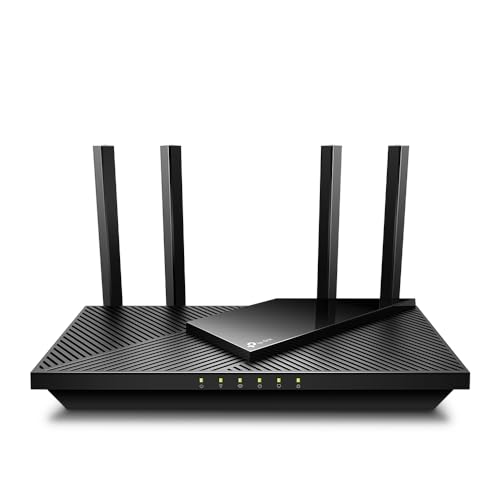
Weak signal is the silent sync killer — could your camera be whispering across the yard?Measure Wi‑Fi signal where the Ring device sits: aim for -67 dBm or better. Use a Wi‑Fi analyzer app (NetSpot, WiFi Analyzer) or check the Ring device RSSI. For example, moving a router 6–10 feet closer often raises signal above -67 dBm.
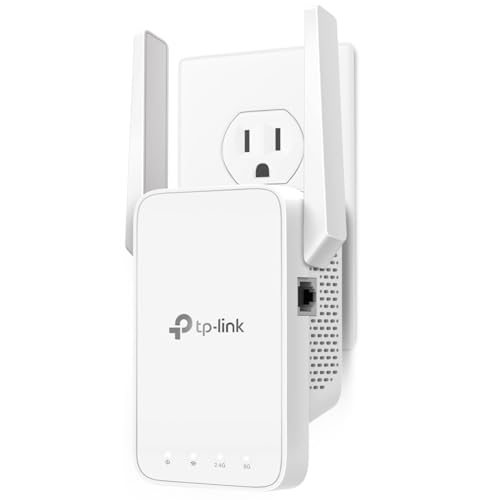
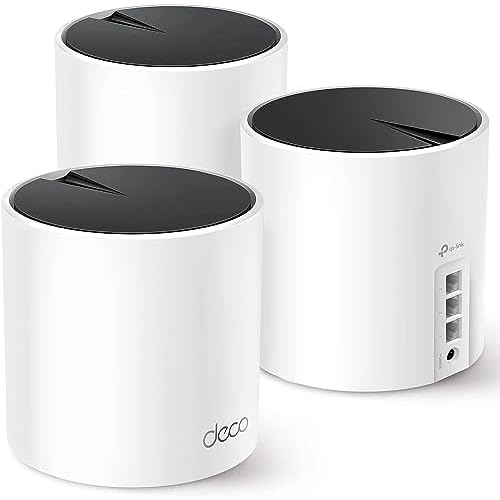
Move the router closer or add a Wi‑Fi extender/mesh node if the signal is weak. Confirm your Ring supports and is connected to the correct band — many Ring devices prefer 2.4 GHz.

Step 4 — Re‑sync the Device via the Ring App
Re-adding a device is rarely dramatic — think of it as a polite reintroduction.Open the Ring app. Select the device, tap Settings → General Settings or Device Health. Try the built‑in Reconnect or Change Wi‑Fi Network options first.
If that fails, remove and re‑add the device: only tap Remove Device if necessary. Then use Add a Device to start setup and put the Ring into setup mode — press the setup button until the light flashes (e.g., many battery Rings need a ~10‑second press).
Enter your Wi‑Fi SSID and password carefully (watch for case and special characters). If re‑adding still fails, perform a factory reset per your model’s instructions, then retry setup.
Step 5 — Update Firmware, App and Router Software
Outdated software is a stealth problem — updates often include critical stability fixes.Check the Ring app for firmware update prompts and install them. Open the Ring app, select the device, tap Device Health (or General Settings) and apply any available firmware updates — e.g., the doorbell may show “Update available.”
Update the Ring app on your phone via App Store / Google Play. Search “Ring,” tap Update, then restart the app.
Reboot your router and check the manufacturer’s admin page or app for firmware updates (Netgear, TP‑Link, Eero, etc.). Install router updates to improve compatibility and stability.
Prioritize Ring traffic with QoS when available:
Monitor the Ring for 10–20 minutes after updates to confirm stability.

Step 6 — Advanced Troubleshooting and When to Contact Support
Tried everything? Here’s how to collect evidence and escalate without wasting time.Run a network scan on a laptop or with apps like Wi‑Fi Analyzer (Android), NetSpot (macOS/Windows) or Fing (iOS/Android) to spot interference, channel congestion or IP conflicts.
Temporarily test the Ring on a mobile hotspot (turn on your phone’s hotspot and connect the Ring) to isolate whether the issue is your home network.
Check account settings for linked devices, shared users, and two‑factor authentication—remove stale shares or reverify 2FA if needed.
Prepare these details before contacting support:
Contact Ring Support with the collected info; if under warranty, request a replacement. Consider hiring professional network help for complex mesh or enterprise setups.
Get Back to a Reliable Ring
Follow these six steps in order to identify and fix most Ring sync issues; if problems persist, contact Ring Support for device‑specific help or replacement. Try the steps, share your results, and restore reliable Ring performance today; now take action.
Question: after re-syncing, does the Ring tracker keep historical data or is there a reset? Also, I have multiple trackers — do I need to re-sync each one individually or is there a group option?
I’m on the latest app but worried about losing activity history if I delete and re-add a device.
Good questions. Re-syncing alone (not deleting) should not wipe history. Deleting and re-adding can sometimes reset device-specific settings, and some history tied only to the device may not carry over — depends on the Ring backend. For multiple trackers you generally need to re-sync each one individually; there’s no bulk re-sync in the app right now.
Also worth contacting support before deleting if you have critical data — they can sometimes preserve or restore things on their end.
If you’re worried, take screenshots of any important logs before doing the delete/re-add.
I had to re-add one of mine and most activity history stayed in the app, but a few device-specific logs were gone. Backup your app account info and screenshots if you care about the logs.
I re-synced three trackers individually — tedious but worked. No full history loss for me, just a few timestamps missing.
This guide was a lifesaver. I tried the quick fixes first and when nothing worked I did Step 2 (power cycle) and then re-synced in Step 4 — boom, everything started reporting again.
Couple things I learned:
– Power-cycling the base station and the tracker back-to-back is important.
– Wait at least 30 seconds between power cycles, don’t just plug/unplug like a maniac 😂
Thanks for including the firmware and router update step too — I had an old router firmware causing packet loss.
Good point about waiting. I always impatiently plug things back in and it bites me later — cheers for the reminder.
Same here! Also worth checking the app notifications after re-sync; mine stayed quiet until I forced-close the app once.
Great to hear that worked, Emily! Your tip about waiting 30 seconds is spot on — we added that as a note in the guide. Thanks for sharing the timeline so others know what to expect.
I’ve been battling this for weeks. Followed Steps 1–5 multiple times, and still drops sporadically. Step 6 says to contact support — I did, and got the usual ‘try power cycling’ walk-through again. Frustrating. Anyone have a contact method that actually helped escalate?
Same — push for a supervisor or ask about hardware replacement if it’s intermittent and you’ve done everything in the guide.
If you have a Pro plan or warranty, push for advanced diagnostic logs from their side. I got a callback after asking for logs and they spotted interference.
Sorry you hit the loop, Jenna. If standard support isn’t escalating, ask them for a ticket number and request escalation to a specialist team. Also mention you’ve already tried the full 6-step list — that helps skip basic steps.
Quick tip from my experience: keep the tracker at least a few meters from the router during initial pairing, then move it to its final location. Sounds odd but placing it too close to the router made pairing fussy for me. Also, cheap Wi‑Fi extenders can cause re-sync headaches — try a powered mesh node instead.
Mesh node recommendation is solid. Cheap extenders have too many quirks.
Nice practical tip, Nora. Proximity during pairing can indeed affect initial negotiation.
Agree on extenders — some create separate subnets or NAT which breaks device discovery.
Pro tip: before doing anything dramatic, try force-closing the Ring app and toggling airplane mode on your phone. Sounds tiny but sometimes the app just needs a little slap. 😂
Also, restart the router — yes, I know it’s the old ‘turn it off and on’ joke, but it works more often than you’d think.
Totally — we mention those quick checks in the Quick Fixes section for exactly that reason. Small steps save time.
Airplane mode trick has saved me more times than I care to admit.
Short and sweet: Step 4 fixed it for me. Re-sync in the app, waited a minute, and the tracker was back reporting. Appreciate the straightforward steps — no fluff.
That’s the dream outcome. Quick fix, no drama.
Thanks Michael — glad Step 4 did the trick for you. We aimed to keep it practical and minimal.
One worry I have: after following Step 4 and re-syncing, will I lose my saved activity history or preferences? Anyone experienced data loss after re-adding a device?
Also, is there a best practice for keeping multiple trackers in the same household from interfering with each other?
If you have trackers in the same room, try setting them up one at a time at different distances.
Interference between trackers is rare but staggered pairing is a good idea — also label them clearly in the app so you don’t get confused.
I re-added one and lost a couple of recent events but most was fine. Screenshots helped preserve important records.
Re-sync alone usually preserves history; deleting is the risky move. For multiple trackers, give them a few feet apart during initial setup and stagger the re-syncs so they don’t all try to pair simultaneously.
Tried everything, even sacrificed a USB cable to the gods. Eventually the tracker came back. Tech support: 0, me: 1. 😏
Haha — glad the sacrifice paid off! If anything else crops up, post the exact step that finally worked and we’ll highlight it for others.
LOL about the USB gods. Which step ended up winning? Power cycle or re-sync?
Curious — did you lose any activity data after re-syncing?
USB cable sacrifices are underrated. Also try changing the outlet sometimes, electronics are dramatic.
I followed the whole 6-step flow last night because my tracker kept dropping off every hour.
Notes:
1) Updating the app (Step 5) actually fixed a display bug, not the disconnect.
2) Re-syncing (Step 4) fixed the connection but I had to delete the device and add it back — weird but effective.
3) Don’t forget to check router QoS and parental controls, they blocked my device once.
Thanks for laying it out clearly 🙂
Thanks Lisa — the note about app updates fixing display bugs is useful. Deleting and re-adding is a heavier step but sometimes necessary; we include that in Step 4 for exactly these cases.
Parental controls can be sneaky culprits. Also check MAC filtering if someone set it up ages ago.
Ugh I had to delete and re-add too. Lost a couple settings but it reconnected — annoying but fine.
For anyone who’s stuck on Step 3: check your router logs for dropped associations. My router showed the tracker attempting to connect and being denied due to a stale DHCP lease. A release/renew fixed it.
How do you usually force a DHCP lease renew? Via router UI or command line?
Nice diagnostic move, Tom. Router logs are often overlooked but can reveal the exact failure reason.
FYI for people using mesh Wi‑Fi: make sure the Ring and your phone are on the same band when re-syncing. My phone connects to 5GHz but the Ring tracker is stuck on 2.4GHz from an extender and it failed until I forced my phone onto 2.4GHz for the pairing step.
Step 3 and Step 4 combo was the fix for me.
This. Also check if the extender isolates clients (some have AP isolation enabled) — that prevented my device from seeing the base station until I adjusted settings.
Excellent tip, Raj. Mesh setups and band steering can definitely complicate things. We’ll add a short note about forcing the phone to the same band during re-sync for mesh users.
If anyone is technically inclined: check for channel overlap and interference on 2.4GHz (use a Wi‑Fi analyzer app). My tracker was sitting on a congested channel. Moving router to a less crowded channel improved stability dramatically.
Also consider static DHCP reservations so the device keeps the same IP — easier to troubleshoot.
Excellent technical tip, Carlos. Channel congestion is a common invisible issue for 2.4GHz devices.
Agreed — Wi‑Fi analyzer apps are great. I prefer using 5GHz where possible but many trackers only support 2.4GHz, so you’ve got to be careful.